Disclaimer: I am not an investment advisor. When I describe my own trading activities, it is not intended as advice or solicitation of any kind.
Showing posts with label Linux. Show all posts

02 May 2012

JavaScript, Perl, IRC, and FourSquare

This week I wrote a script to check myself into foursquare venues. Being a C++ programmer for whom every microsecond counts, I don't get much opportunity to play around with scripted languages or internet services. So to accomplish this task, I had to teach myself enough JavaScript including using jQuery and JSON to interact with foursquare's API.

(By the way, I was going to put a foursquare logo here, but I read the trademark page and was so disgusted that I don't think I will)
Foursquare uses OAuth 2.0 to let a user give an application access to their foursquare account. This requires registering the application to get a ClientID, which is as simple as coming up with a name, and then using that ClientID in conjunction with the user's cooperation to generate an authentication token, which can then be used indefinitely to access the user's account. To reduce the risk of the application being spoofed, foursquare also requires a URL during registration, which it calls back during the authentication process.

Because of this callback model, I have to have a real web page on a publicly-available server. I have my markmccracken.net domain hosted primarily for email and this blog, and it does allow HTML-serving, but no server-side scripting like PHP. So that means all the authentication work has to be done in client-side scripting like JavaScript.

The beautiful and media-rich page I whipped up to accomplish the authentication is here. I've had spotty results using this from IE, but it seems pretty reliable under Chrome and Firefox (presuming you have JavaScript turned on, of course). Including the authentication, this page accomplishes a few one-time tasks:
  1. Authenticate, as mentioned, getting an access token I can use indefinitely.
  2. Search the user's lists on foursquare for one called "My Favorites".
  3. Iterate all the venues in that list, putting them and some other helpful defaults into a text box that can be copy/pasted to prime a configuration file.
I like having my long-running scripts talk to me via IRC, because I can passively monitor them from anywhere, and even interact with them in a rudimentary manner. For this project, I used Bot::BasicBot from CPAN, which I've used before to hook a Perl script up to IRC. It's a nice Perl library in the form of a base class where most of the interaction is done in an event-driven manner via the use of callbacks. The two main callbacks for my purposes are tick() and said(). tick() gets called when a timer expires, and said() gets called whenever anyone says anything on the IRC channel. With a little state management and content filtering/parsing, the bot can do pretty much whatever it needs to do with these two callbacks. It can also speak onto the IRC channel by using the say() method.

CPAN is far less scary than The FoursquareTM Site

The only thing left is the meat of the task, which is to check myself into a foursquare venue, wait for a while, and then repeat on the next venue. Since all the venues are pre-loaded into the configuration file, the Perl script just has to iterate them at extremely low speed (one checkin an hour) and make a POST request for each one that actually accomplishes the checkin. For that request, I used the HTTP::Tiny package, because it's usually pre-installed and is very easy to use. Since foursquare requires that POST request to be over https, the IO::Socket::SSL package must also be available.

If you want to try this thing yourself, follow the instructions below for your operating system. I actually have Windows instructions this time because I helped some POWs (Prisoners Of Windows) get it working in their cells. Either way before you begin, create a list on your foursquare account called "My Favorites" and put into it whatever venues you want to automatically check into.

Linux
Perl is probably already installed, but you'll probably need some or all of the extra packages. The cpan utility comes with Perl (at least on Arch), so use it to install the required packages.

sudo pacman -S cpan
cpan Bot::BasicBot
cpan HTTP::Tiny # probably unnecessary
cpan IO::Socket::SSL

Next get the perl script here, and save it somewhere convenient. Give yourself execution permissions.

chmod u+x foursquare_irc.pl


Go to the media-rich and highly advanced authentication page mentioned earlier, and get your configuration starter. Copy it from the web page and paste it into a text file such as foursquare.cfg. Then jump down to the IRC-specific settings described after I repeat these instructions to those Winlozers in small simple words.

Windows
Since you are trapped in Windows, you have no Perl pre-installed. So first, go get Strawberry Perl. Be sure to get the right architecture for your machine: 32-bit or 64-bit. If you're not sure which one you have, then you probably don't want to go any farther with this project anyway. Strawberry Perl was written for Windows users, so it chooses bloat over customization. That means you don't need to install any of those packages I mentioned earlier, because Strawberry Perl pre-installs all of them for you. And yes, that strawberry on their home page is HUGE.

Next get the perl script here, and save it somewhere convenient that you can find again, like your Desktop. In the same place, create an empty text file such as foursquare.txt. In that file, paste the contents of the text box on the media-rich and highly advanced authentication page mentioned earlier. Add the IRC-specific settings described below after I insult some Mac people.

Mac
Go away.

IRC Settings
The highly advanced and media-rich webpage doesn't talk about IRC settings, because there is another version of this script for IRC-impaired people that doesn't use IRC, and I didn't want to confuse them with excess settings. So you'll need to manually add the following settings. Note that none of the stuff in parentheses is real - you have to come up with your own.


IRCChannel= (your IRC channel here, such as #RiskOfRuin)
IRCServer= (your IRC server here, such as irc.foonetic.net)
IRCPort=6667 (probably right, check your server)
IRCNick= (a probably-unique nickname for this script, such as oexkubhtn234)
IRCBoss= (YOUR nick on IRC - the bot only takes orders from this nick)

Run That Sucker
With all the settings in place, go connect your own nick to the IRC channel. Then execute the script:
(Linux) ./foursquare_irc.pl foursquare.cfg
(Windows) .\foursquare_irc.pl foursquare.txt
Yes, Windows people, you're going to need to open a command window. Sorry.

If you've configured everything correctly, you'll see the bot connect to your IRC channel and report its readiness. To interact with it, precede your command with its nick: oexkubhtn234 quit. Simple. It responds to the following commands:
  • quit - quits.
  • start - starts at first venue after waiting [0 .. MaxSlop] minutes.
  • start n - starts at nth venue.
  • status - tells you what it's up to in case you forgot.
  • settings - reports its settings and venues.
Please use this script responsibly!

25 February 2012

Random Hubble Desktop Wallpaper


As I settle into my new Arch workstation, I find myself going through all the little nesting behaviors that any user would demonstrate. Only it's a little more challenging this time around, because instead of a user-coddling operating system like Windows or Ubuntu, I'm using Arch Linux. And instead of using a familiar desktop environment like Gnome, I'm using KDE 4.8. So the most basic of things provides an opportunity for learning. For example, I spent a good 30 minutes trying to figure out how to set up the screensaver the other day. It's easy, and very similar to how every other operating system does it; but I just didn't know where to look.

One of my computing goals this year is to stop taking the features and options spoon-fed to me by the desktop environment and instead be willing to step up and exert my own will on the environment. Arch/KDE is a perfect combination for this, because they are both all about basic building blocks and customization. In my previous installation (Ubuntu 10.10), I had a little python script that I grabbed from Christian Stefanescu that will download the NASA image of the day and make it your desktop wallpaper. I still have that script, and I could use it with a few modifications for KDE instead of Gnome. But NASA's image of the day is hardly ever cool things like stars and galaxies, and instead is usually pictures of people smiling for the camera, or close-ups of a really important and boring piece of metal. I want something with some curb appeal.

I looked into a few other daily-image sites, like Alta Ski Area and National Geographic, but they just aren't designed to be wallpapers - the resolution is too small to look good at 2048x1152, and they're frequently in portrait-mode, which looks terrible on my widescreen monitor. Of course, Murphy's Law dictates that today when I go look at those sites to get the links above, they both are showing images that would look great as wallpapers. Trust me, they're the exception, not the rule. But I digress.

The official Hubble Site has a bunch of fantastic images in its gallery, but they don't pick one a day for you. There is a main page that shows thumbnails of all the images, a resolution-selection page when you click on a particular image, and finally another page that displays the image inline. I figured I could probably handle this with a Perl script, so I grabbed the HTML::Parser package from CPAN to do the heavy lifting, and did a little reading of its description page. It treats the incoming HTML document like a hierarchical tag system, just like most XML parsers do. I've never used an HTML parser before, but I wouldn't be surprised to learn that this is standard - it makes the most sense. You start by deriving your own class from HTML::Parser, and write start() and end() callbacks. Then as each tag (<div>, <a>, <img>, etc) is opened by the parser, it sends interesting info to the start() callback. When it closes, it calls the end() callback. In this way the entire tree of HTML is traversed, in a depth-first fashion.

Wallpaper Thumbnails Resolution-selection 2048-wide image

Being a Perl newb as well as an HTML::Parser newb, I did the easiest possible thing, which was to define three different classes - each tailor-made for one of the three pages that were required for finally getting the image. There is no error-checking or customization capability - paths are all hard-coded, and if anything goes wrong the script will probably just crash. But that means my wallpaper won't change for a couple days, or until I have time to investigate -- not exactly life-threatening. This is another example of utility code that simple doesn't warrant any more attention than is necessary to get it running. I finished it in about an hour.

I have this script scheduled to run every day at 4:00 pm, because that's about the time I get home from work and turn on the computer. It makes me happy to see a new wallpaper appear out of nowhere as I'm getting my email and paying bills. And after all, isn't that the point?

Download the source code if you're interested.

21 February 2012

Recovering an Unbootable Kernel Image

This is a quick how-to on rebuilding an Arch Linux initramfs image when both the main and fallback images are unbootable. This can happen if something goes wrong during an update to the "linux" package and the problem isn't detected and solved before a reboot. This post draws information from the Arch Wiki articles Change Root and mkinitcpio, as well as an Arch Forum post discussing a path problem causing an unbootable image. All the information necessary to recover is contained within these three links, but I felt that a cookbook would be helpful, especially in the stressful moment when a vital computer is sitting at the limited shell prior to booting the kernel.

This is intended to solve the specific problem when the Arch bootstrap claims it can't find the boot drive, and when it is very unlikely that the hardware is actually having a problem. In my case, I experienced this with regularity on a Virtual Machine, which was not having virtual hardware failure. It turned out to be exactly the problem in the forum post described above, but first I needed to recover the system.

Step 1 - Get It Booted
Your system isn't going to boot on its own: both the primary and fallback boot images are refusing to behave. So go get yourself an Arch ISO and burn it to CD or a USB. If you've already installed Arch, you know how to do this. Or read the Arch Wiki article about it if you've forgotten. Use the download and burn process as an opportunity to take a deep breath - that will help with the remaining steps.

Boot from the ISO, and choose the first option from the ISO's boot menu. But don't start Arch setup. Instead get the network running so you can update with pacman.

# aif -p partial-configuration-network

Answer the prompts. If this first step doesn't go well, don't sweat it - it just means you won't have internet access, which probably isn't required anyway.

Step 2 - Take Stock
We need to manually mount all the necessary partitions, and to do that we need to know what they are. If you remember how you partitioned your disk, that's great. But if you don't remember exactly which /dev/sdaX goes where, you'll need to do a little guessing. Luckily, fdisk can help. Note that I've trimmed the output some for brevity. I've also cheated a little and typed in some partitions from gparted because my /dev/sdb uses GPT.

# fdisk -l

Disk /dev/sda: 100.0 GB, 100030242816 bytes
   Device Boot     Start         End      Blocks   Id  System
/dev/sda1   *         63     3903794     1951866   83  Linux
/dev/sda2        3903795   195371567    95733886+  83  Linux


Disk /dev/sdb: 2000.4 GB, 2000398934016 bytes
   Device Boot     Start         End      Blocks   Id  System
/dev/sdb1             31 3871748080   3871748047   83 Linux
/dev/sdb2     3871748081 3907029134     35281054   xx Linux-Swap

On my system I have a roughly 2GB bootable ext2 partition on /dev/sda1 and the remainder of the 100GB SSD is ext4. I have a 1.8TB data partition at /dev/sdb1, and my swap file is /dev/sdb2. This is enough information for me to remember that sda2 mounts to / and sdb1 mounts to /caviar but contains the /var directory, which is sym-linked over from sda2.

If fdisk isn't enough to jog your memory, you may need to test-mount and explore a little.

Step 3 - Mount and Prep
Once you know which partitions you need to mount where, get it all mounted under /mnt/arch. Also mount the proc, sys, and dev directories so they'll be available to your chrooted sandbox.

# mount /dev/sda2 /mnt/arch
# mount /dev/sda1 /mnt/arch/boot
# mount /dev/sdb1 /mnt/arch/caviar
# mount -t proc proc /mnt/arch/proc
# mount -t sysfs sys /mnt/arch/sys
# mount -o bind /dev /mnt/arch/dev

In case you need to update with pacman, you'll want network access. If you got the network running in Step 1, copy the resolv.conf down into the chroot world.

# cp -L /etc/resolv.conf /mnt/arch/etc/resolv.conf

Step 4 - Chroot and Fix
Next, jump into your sandbox.

# chroot /mnt/arch /bin/bash

Now that you're here, feel free to poke around in logs to see what might have gone wrong. In my case, I had stupidly run pacman -Syu --noconfirm from a cron job without setting the PATH to include /sbin. As a result, the update script failed to call depmod but then blindly ran mkinitcpio on the incomplete map files, rendering the image stillborn. The depmod result should really be considered during a linux upgrade so that mkinitcpio doesn't trash the boot image, IMHO, but what do I know.

For now, let's assume you have the same problem I did. To resolve it, all I needed to do was the following:

# /sbin/depmod
# mkinitcpio -p linux

As a precaution, I also did a full update with pacman and made sure that everything went smoothly.

# pacman -Syu

All was well, and I was able to reboot into my system again. 

26 January 2012

Document Scanning in Linux Using Perl

I decided I wanted to take all the old bank statements, credit card bills, and paystubs that we keep in a file cabinet, and scan them into digital format - PDF, to be precise. This is more secure, because we can easily make backup copies and encrypt anything sensitive. And it's less clutter, because even a small hard drive can hold many lifetimes of statements, records, and bills. It was a pretty straightforward plan:
  1. Buy a scanner
  2. Scan all the documents
  3. Shred all the documents
Of course, being me, I had to improve the process a little.

First off, we chose the Fujitsu ScanSnap S1500. There is also an identical S1500M, the only difference being whether the bundled software is written for Windows (S1500) or Mac (S1500M). Notice there is no S1500L (L is for Linux, boys and girls!). No big deal, though, because after only a few minutes of Googling I was able to be pretty certain there were drivers on my real operating system that would handle it. It was a bit more expensive than I would have liked, but having used it for a while now, I couldn't be happier with it. It scans fast, it scans well, and it does multiple pages and full duplex like a champ. Oh, and it opens like a frickin' Transformer. Awesome!

It uses USB, and I use Linux, so I politely ignored all the step by step instructions and software, and instead powered it on and jammed the USB cable into my machine to see what Ubuntu thought of it. Ubuntu thought it looked like a scanner, and it might like to do some scanning with it. No downloads, no crapware, no driver hell, and no problems. Nice. After a few test scans to get my resolution, orientation, and whatnot the way I liked it, I grabbed a handful of monthly bank statements and started scanning.

OK, that's tedious, and I hated having to re-type the damn file name every time. Chase_2007-01.pdf, Chase_2007-02.pdf, Chase_2007-kill-me-now.pdf. It would be nice to simply tap a key on the keyboard every time I get a document ready. I don't need a GUI, so maybe scripting is the right answer... more Googling.

To take input from a scanner and turn it into a multi-page PDF, (at least) 3 steps are necessary:

Step 1: Grab Images From the Scanner
On the Linux command-line, there's a great command called scanadf that will scan all the pages in an automatic document feeder (ADF) and store them as PNM files. The command for doing that for the May 2007 Chase bank statement is:

scanadf -o Chase_2007-02_%d.pnm --source "ADF Duplex" --mode Lineart --resolution 150

Notice the "%d" in the file name. If it's a multiple page statement, each page will be a separate PNM file, and each file name will replace the "%d" with sequential page numbers. PNM files are essentially graphics files.

Step 2: Convert the PNM Files to PostScript
This is a dumb intermediate step, in my opinion. I don't see why no one has simply written a direct PNM-to-PDF conversion utility. But whatever, another command called pnmtops gets this done:

pnmtops -noturn -rle Chase_2007-02_1.pnm > Chase_2007-02_1.eps

This command gets repeated once for each page, varying the file name like scanadf did. The result is a bunch of Encapsulated PostScript files, one for each page.

Step 3: Convert the EPS Files to a Single PDF
I had never used GhostScript before, but I had certainly heard of it. It always sounded kind of glamorous and mysterious - it's definitely mysterious. I tried to read its man-page and got lost nearly immediately (Adobe's docs always do this to me, too), so eventually I just found a recipe for doing what I wanted and stopped asking questions:

gs -q -dSAFER -dNOPAUSE -dBATCH -sOutputFile=Chase_2007-02.pdf -sDEVICE=pdfwrite Chase_2007-02_*.eps

With all these new-found powers at my disposal, I wrote a Perl script. I had it bump the month up by one and scan in all the pages every time I hit the enter key. I gave it the ability to pass in the starting month/year and the base file name ("Chase") on the command-line. Then I found I was missing the odd statement now and then, so I gave myself the ability to type "skip 1" instead of just hitting enter - this skips a month (guess what "skip 4" does) and continues scanning. Then I came across a monthly statement that was in color and on a single side of each page, so I added more command-line arguments to switch to "Photo" mode at 300dpi and to use "ADF Front" instead of duplex. Then I started scanning statements from a bank that for some reason liked to end its months on the 15th. Being a precise kind of guy, I added the ability to optionally include the day in the statement date: Chase_2007-02-15.pdf.

Then I ran into a brokerage statement that wanted to be landscape.

Step 1.5: Rotate the Damn Page 90 Degrees
Believe it or not, you need another program for this, called unpaper. This is a powerful and feature-rich utility, but I only use it to rotate the page. So the script only executes the following command if rotation is selected:

unpaper --pre-rotate -90 --no-processing 1 Chase_2007-02_1.x.pnm Chase_2007-02_1.pnm

Notice that the input file has that extra ".x." in it - I add that to the output of scanadf if rotation is selected.

What else could this amazing script possibly need? Well, I didn't like that the title displayed in my PDF Viewer was "Chase_2007-02_1.eps" - that seemed a little amateur. So the script also creates and then uses a PDFMarks (link is a PDF) file that sets the Title to "Chase_2007-02", and also sets the CreationDate property to February 15, 2007, because really, why not.

Perfect. I will never need to change this script again. Now let's scan some bi-weekly paystubs. Oops.

The Wrong Way
OK, I'm a professional developer, and I'm pretty good at what I do. I know the right thing at this point would have been to change the script to be able to specify the period. But at that moment, for some reason, I chose to copy the entire script, and change that copy into a bi-weekly one. Ugh. 

Later that same day I realized that manually scanning even the annual statements from retirement accounts and whatnot was kind of cumbersome. So of course that's when I fixed my mistake, combined the two scripts, and added annual periodicity, right? No. I cloned the script again. I'm so ashamed.

I lived with this abomination for nearly a week before its software equivalent of screamed obscenities in a silent church was finally too much for me to handle. Never mind that it was perfectly functional - that's not the point. It needed refactoring. Since it is just a little utility script, after all, I compromised on the perfection. There are still three separate scripts, but they now only do the monthly/yearly/bi-weekly work. They use a common module that does the actual scanning and common option management, so while the design is still terrible, at least I have some code reuse.

I'm publishing the full source for it right here (zip) in case anyone wants to use it, adapt it, or improve it. Let me say one thing up-front, though: I am a terrible Perl programmer. My syntax is nearly non-existent, requiring many trips to perldocs to figure out how to do the simplest things. And I realize that my Perl code looks like a C++ developer wrote it - there's a good reason for that. So if you've stumbled on this blog looking for scanning info, and you're a Perl master, have a good laugh at my expense. But please don't tell me about it.

Now if you'll excuse me, I have some quarterly (oh crap!) bills to scan.

21 November 2011

Applications: PasswordSafe

See Time For a Change for the first in this series, or check out the index to see all the posts dealing with Arch Linux. Today I will set up PasswordSafe, an open source password manager. But first some information about this excellent program.

There are a number of password managers out there with various features that they hope will differentiate them from the others. PasswordSafe is one of the oldest and simplest ones available. All good password management programs should have a few key features:
  • Really strong, proven crypto - all your sensitive passwords are going in this thing; if you can't trust it to keep them safe, don't use it.
  • Offline database storage - I don't trust another company to store my passwords; I want to know that the file is encrypted well, and I want it on my hard drive. My hard drives are backed up, and they won't get bought up by Oracle or go out of business with my data.
  • Configurable random password generation - with a good password manager, you should only need to remember one more password for the rest of your life. That means the rest of them can be completely random, which is way stronger than "Tr0ub4dor&3".
  • Copy/paste password use - you shouldn't have to type passwords stored in the database; just copy/paste them into the password entry field. This is more convenient and more secure, since it defeats a keylogger.
  • Paranoid clipboard management - the system-wide clipboard is accessible by any program running, including malware. A good password manager will give you options on how aggressively it will clear the clipboard of your sensitive password.
There are many other nice-to-have features, like the ability to run on a USB key, good organization capabilities so you can find things quickly, username/password auto-type, and a software keyboard for accessing the database in case you fear a keylogger might be installed.

PasswordSafe, as you might expect from my preferred application, has all these features and more. Being open-source, it has verifiably strong crypto: anyone can peruse the code and do their best to crack it. It's OK if you're not skilled in crypto-cracking... it's enough to know that other very talented individuals have leveled their weapons at it for many years and its strength is proven. It stores everything in a single data file (encrypted, obviously), which you can put anywhere you want. It treats it like a document, so you can have multiple password databases if you want. Being a simple file, you can back it up, copy it around, synchronize it with Dropbox, whatever your desire and comfort level dictates. Double-click entries to copy the password into your clipboard, which is cleared a configurable time later.

Password generation can be configured application-wide or by individual entry, in case a particular site has unusual requirements; or you can type in an existing password, too. One little trick I like to do is to put my credit card numbers in as passwords and include the expiration date in the username, which is displayed in the list. This lets me copy/paste my credit card # into an online store checkout page without fat-fingering it.

Important note: the PasswordSafe I know and trust is at http://passwordsafe.sourceforge.net/ - there is also a "passwordsafe.com" website that purports to have a password manager called "HyperPassword". I have no idea if this is a good program or not. If you want to use what I know and trust, use the SourceForge link. It's not that I mistrust this other one, per se, but PasswordSafe is well-proven, has an excellent pedigree, and doesn't go off and buy a domain name that might sow confusion. That's a tactic used by malware (PDF, see page 6).

For the longest time, PasswordSafe was developed only for Windows. Being open-source, eventually some Linux developers got involved and ported it to WxWidgets, a cross-platform GUI library. Open-source projects like this typically provide binaries for Windows, since Windows doesn't come with build tools. Then if it supports Linux, there is always a source-based distribution so that users can build it for their Linux distro of choice. Eventually, there may also be binary distributions for various popular distros, Ubuntu usually being the first. PasswordSafe has just barely reached this final stage. Linux support has been marked "beta", probably forever, and the only binaries for Linux are for 32-bit Ubuntu/Debian.

Now, I could just run PasswordSafe's Windows version under Wine on any Linux distro I choose. Doing so is easy: just download the Windows installer and run it - Wine takes over and goes through all the installer steps. But that's cheating! This application is open-source, and it runs fine on 32-bit Ubuntu. Making it run on 64-bit Arch might be a challenge, but it's possible.

Full disclosure: A few months ago I managed to make it work on 32-bit Arch for other reasons. I had to change code to do it, which I posted to the PasswordSafe bug-tracking forum; they responded and told me my changes had been incorporated into the next release, which is now out. But whether that will translate into an easier 64-bit experience is anyone's guess. There is no package for PasswordSafe in the AUR, either, so I'm really on my own for this one.

I will be skipping some the mundane steps in this install, since I expect a more complicated journey. After downloading and extracting the source archive, I perused the Linux installation instructions, which only provide instructions for installing the Ubuntu/Debian binaries, and the Linux Development ReadMe, which was last updated in November 2010. Yeah, on my own here. Most Linux source archives follow the "configure ; make" paradigm, but that didn't work in this case because no one built a configure script. So I tried just "make release", based on experiences with the 32-bit installation, first installing the Xerces-C XML parsing library and the wxWidgets GTK library as per the year-old ReadMe. Wonder of wonders, it built the first time! They must have gotten my changes applied successfully.

Unlike more polished Makefiles, this one leaves the binary buried under the src/ui/wxWidgets/GCCUnicodeRelease subdirectory. I went ahead and ran pwsafe from this directory, and after an error message about help not being available, the application started right up and waited for me to use it. This is a success already, but I would prefer not to see an error message on every startup.

Not being an installer, "make" doesn't put the in-application help repository anywhere helpful. The expected location for that file is hard-coded to be /usr/share/doc/passwordsafe/help/help.zip. But there didn't appear to be a help.zip file anywhere in the source tree after building. Looking through the Makefile.linux file at the top level, it looked like there was no build action for "help", unlike with Windows. So I did it by hand based on what I found in the Makefile.windows by typing "make -C ./help", which built help.zip, as well as several other languages (helpES.zip, helpFR.zip, etc). Then as root I copied help.zip to its expected location and tried again to run pwsafe. Sure enough, no error message, and clicking the Help button brought up the help window.

I don't really use the on-screen keyboard, because I don't fear a keylogger on my home system. But for completeness I gave it a try, and saw an error message in my console window: execvp(xvkbd) failed. It turns out that xvkbd is a package that wasn't listed in the Linux Developer ReadMe, so I installed that via pacman and tried again. Success!

Now that all the pre-authentication stuff is working, it's time to move on to the meat of the application. Unwilling to potentially corrupt my password database, I opted to create a new one. That way I can also put in fake credentials and be unafraid of posting screenshots. I went ahead and added several groups and passwords without incident, using both generated and hand-entered passwords.


Double-clicking an entry did successfully load the password into the paste buffer. However, when I tried the Auto-Type feature, which is supposed to take the selected username and password and paste them into the active window, separated by a TAB, I got some interesting results. I performed Auto-Type into a text editor so I could view the results directly. The screenshot below is the fully-exposed details for my "Tenth-Sixth Checking" account (click to zoom in).


When I use Auto-Type, however, I get: "Ipa.gif;>gpd" (tab) "hs,l<gkjHadhoa". Now, Auto-Type is not a feature I really use, so this is really just an amusing bug, but the interesting thing is that this apparent nonsense string of characters is exactly what I would get if I was typing in QWERTY on my Dvorak keyboard. That must mean that: (a) PasswordSafe is sending fake keypresses, not letters, when it does an Auto-Type; and (b) it pays no attention to the keyboard layout settings, even though I set them at both the operating system and XWindows levels. Sure enough, I found a bug report from a German keyboard user with a similar issue, and the devs had already responded saying it was probably a bug having to do with hard-coded keyboard layouts. I added my own experience to the comment tree in case it helped them figure it out. Since I don't really use Auto-Type, as I noted above, this doesn't slow me down.

One last issue that I won't try to solve because it doesn't really matter is the system tray icon. PasswordSafe tries to give some visual feedback so the user knows whether the safe is "open" (accessible) or "closed" (requires a password to access). In Windows, these two icons look fine, but on my Arch/KDE system, they look like they have some erasing issues. The slightly magnified compound picture below from left to right is Windows Open, Windows Closed, Linux Open, Linux Closed. Again, not a show-stopper, just a little strange. By the way, my Linux taskbar is a little bigger than on my Windows machine, so the size difference is to be expected.


Even the Windows icons, seen magnified, look pretty bad. Seems like a nice vector image in the form of an SVG would be a good idea... but I suspect that wouldn't work on Windows.

The final acid test was to open my real database (after backing it up of course), make some changes, and then attempt to use it again from my host machine. No problems whatsoever! 

Overall, this went far more smoothly than I expected. Having dealt with the compile issues previously and waited long enough for the devs to get the updated release out there definitely helped.

The only thing left is Bacula for backups. I have been putting that off because it is such a pain to set up, and because I will need to redo the VirtualBox networking in order to test it completely.

Next: Bacula
Or check out the index.

10 November 2011

Yaourt and NixNote

See Time For a Change for the first in this series, or check out the index to see all the posts dealing with Arch Linux. Today I will set up yaourt, which makes working with the Arch User Repository (AUR) much easier, and then use it to get NixNote installed.

Yaourt stands for "Yet AnOther User Repository Tool", which is a terrible name, but it is very effective at its job. It makes the AUR significantly easier to work with, by giving a pacman-like interface that does everything pacman does, but adds the AUR as a source. This makes installing packages from the AUR as simple as installing packages from the core repository... usually.

Having fought with and failed to get NixNote installed by hand, I turned in frustration to yaourt, and was pleasantly surprised at how easy it was to use. I still don't trust it entirely, because I can't find much in the way of documentation about it, and there seems to be some contradictory information about whether it is safe to use it for non-AUR packages or not. But I suspect like any labor-saving tool, my comfort with it will come long before my understanding.

I installed yaourt in a very similar manner to my installation of libgcal and akonadi-googledata before. It relies on the package-query package in AUR, which therefore needs to be installed first. The following steps can also be found at yaourt's website:

$ cd ~/abs
$ wget http://aur.archlinux.org/packages/package-query/package-query.tar.gz
$ wget http://aur.archlinux.org/packages/yaourt/yaourt.tar.gz
$ tar xf package-query.tar.gz
$ tar xf yaourt.tar.gz
$ cd package-query
$ makepkg -si
$ cd ../yaourt
$ makepkg -si

Next is to install NixNote. In theory, all I should need to do is:

$ yaourt nixnote

And in theory, there is no difference between theory and practice. But in practice, there is (Yogi, or Al, or Jan). And so it is in this case. After a bunch of package downloading, configuring, and compiling -- all done by yaourt -- I finally get this error:

/usr/bin/ld: /caviar/usr/bin/../lib/gcc/x86_64-unknown-linux-gnu/4.6.2/../../../../lib/libm.a(k_standard.o): relocation R_X86_64_32S against `.rodata' can not be used when making a shared object; recompile with -fPIC

/caviar/usr/bin/../lib/gcc/x86_64-unknown-linux-gnu/4.6.2/../../../../lib/libm.a: could not read symbols: Bad value

collect2: ld returned 1 exit status
make[1]: *** [libpng12.la] Error 1
make[1]: Leaving directory `/tmp/yaourt-tmp-mark/aur-libpng12/src/libpng-1.2.46'
make: *** [all] Error 2


Let's break this down, shall we?
  • /usr/bin/ld - this is the linker reporting the error, which means that all the code has compiled just fine, and now the build system is trying to assemble it into an executable binary file.
  • .../lib/libm.a(k_standard.o) - the failure occurred while linking the static library "libm.a" into the executable, specifically some reference inside the program module k_standard.c, it doesn't really matter what.
  • relocation R_X86_64_32s against `.rodata' can't be used when making a shared object - I'm not really sure what is going on here, but I suspect it has something to do with some of the weirdnesses of working with 64-bit addressing within libraries that were written assuming a 32-bit world. This sort of thing happens far more often than it should.
  • recompile with -fPIC - advice from the linker on how to solve this issue, I love it.
  • .../lib/libm.a: could not read symbols: Bad value - probably caused by the previous error. Once something goes wrong in a build process, its effect usually cascades forward a ways before the build system stops.
  • make...libpng12.la - we weren't even working on building NixNote, here, but libpng12, one of its dependencies. libpng is a library for manipulating PNG graphics, and the repository version of this library is at 1.4. NixNote is woefully out of date, though, and won't work with anything newer than the old 1.2 version of libpng, and this is that outdated library.

The -fPIC flag to the linker is a new one to me. Here's a man page reference, taken from man ld:

-f name  :  When creating an ELF shared object, set the internal DT_AUXILIARY field to the specified name.  This tells the dynamic linker that the symbol table of the shared object should be used as an auxiliary filter on the symbol table of the shared object name.

This doesn't really clear it up much. Some more searching led me to some related content that implied that the "recompile with -fPIC" advice was actually suggesting that I recompile the math library libm, which is an integral part of the operating system (pun intended). This is probably not a great idea, so instead I'll try to disable the use of shared libraries and PIC (Position Independent Code). By the way, if you want more information about all these issues, read this and then explain it to me. ;-) Anyway, I want to adjust the build process of libpng12, which all starts with the same command:

$ yaourt nixnote

Except this time, I'll answer "yes" when it comes to the libpng12 PKGBUILD question. Within this file, I see a section called "build" contains the line:

./configure --prefix=/usr

This is a very standard way to get a Linux source package ready for building and installation, and the best place to make my change. Specifically, I'll change it to:

./configure --prefix=/usr --disable-shared --without-pic

And this time, it sailed right through, building and installing libpng12, and then building and installing NixNote successfully, even adding it to my KDE menu for me and everything. But when I try to run it:

$ nixnote
...
java.lang.UnsatisfiedLinkError: /tmp/QtJambi_mark_amd64_4.5.2_01_gcc-20090628-2055/lib/libQtGui.so.4: libpng12.so.0: cannot open shared object file: No such file or directory

This isn't a big surprise, since I did disable the building of the shared library libpng with that first additional flag. For some reason, it occurred to me to do a file search on my hard drive for libpng12, and lo and behold, there was a libpng12.so.0 sitting in the Dropbox application directory! Yoink...

$ sudo ln -s ~mark/.dropbox-dist/libpng12.so.0 /lib/libpng12.so.0
$ nixnote

Finally, I can enter my Evernote account details, synchronize my notes from their server, and I'm off to the races. It's kind of sad that I had to jump through so many hoops to get this installed when the right answer would be to update NixNote to use the latest (and fully supported) version of libpng. Maybe someday I'll look at how feasible doing that would be, but today I just want my software to work.


Almost there!

  • PasswordSafe for secure password management
  • Moneydance for personal finance DONE!
  • ThinkOrSwim for option trading DONE!
  • Minecraft DONE!
  • Dropbox for cloud storage DONE!
  • Kontact for e-mail, contacts, and calendar DONE!
  • Choqok for micro-blogging (following and posting to Twitter) DONE!
  • NixNote for notes/personal organization DONE!
  • Okteta hex editor DONE!
  • Bacula for automated backups
  • 09 November 2011

    Applications: Kontact

    See Time For a Change for the first in this series, or check out the index for all the posts on Arch Linux. Today I'll finish getting email, calendar, and contacts working, which I started last time by working with the Arch User Repository.

    Kontact, and Some Light Ranting
    Kontact is the Personal Information Manager (PIM) that comes with KDE. If you've ever used the full version of Microsoft Outlook before, you've used a PIM. Kontact is actually one of the reasons I wanted to give KDE a try, because from everything I've read, it is as well-integrated with the operating system as Outlook is in Windows, and has better extensions for synchronizing with information sources like Google. As an Android user, Google integration is a key feature for me - I find it frustrating that keeping contacts and appointments synchronized seems to be so difficult for the big boys (Microsoft and Apple) to handle correctly. I realize this is by design, of course. Outlook has no revenue value to Microsoft without a big Exchange Server license, and Apple wants your eyes on iTunes, not Google services. Too bad. This is my computer, and I'll make it do what I want. And that goes double for my phone.

    Installing Kontact isn't necessary, since it comes with KDE. But getting it to integrate with Google information services takes a little more work. I installed those extra things last time, and now it's time to get them configured.

    Even before I get started, I can hear you thinking, "geez, this is a lot of work, why don't you just use Microsoft Outlook?" And yes, it's a bit of work. But it's worth it to me to have all my contacts, email, and appointments synchronized across my phone and computer without having to run a big wasteful server in my house. Besides, the Exchange Server at your office that provides all these services is just as hard to set up and maintain (maybe harder), and it doesn't even integrate with anything other than Microsoft Exchange! Try this little experiment: call your IT department and tell them that you want all your Google contacts to show up in your address book in Outlook, and insist that you want to be able to edit them within Outlook or on your phone, and have the changes automatically show up in the opposite location. Now, while you deal with a very annoyed IT department, I'll go ahead and set this all up for myself with no dedicated hardware and no capital expense... in a couple of evenings.

    Configuring EMail
    KMail is the email component of Kontact, and configuring it is just like configuring any other IMAP client. I added accounts for each of my main email boxes, setting my login and password for each. I set up an outgoing persona and hooked it up to my primary email box with authentication so that my email provider would forward my mail out to the world for me. And then I selected the inboxes from each of my email accounts as "Favorites" so I wouldn't have to search through all my folders to see what spam I had. KMail is not as easy to use and customize as Thunderbird, but I can get used to it.

    Here's a screen shot, in case you've never seen an email client set up before.


    Configuring Akonadi - Contacts
    Akonadi is the KDE information service, providing contact, calendar, and general file-indexing services to all KDE applications via a unified API. If this sounds complicated and error-prone, then you are very perceptive. I want to set up Akonadi to use my Google contacts and calendar, and I have two calendars I want to access: my personal calendar, and the shared calendar that my wife and I use to track our joint plans. In my previous post, I installed the pieces necessary to make this happen. Now I need to configure them.

    I start by going into the Contacts section of Kontact (anyone else see the naming oddity here?), and deleting the empty local-storage contacts list that Kontact provides by default. Having that will just lead to confusion later. Next, I right-click in the same pane that the contacts list was in, and select "Add Contact List". At this point I'm offered a choice of what kind of contact list to add. Since the installation of akonadi-googledata went smoothly, the first one on the list is "Akonadi Google Contacts Resource".


    Clicking on this asks for my Google email and password, and after supplying that, all my GMail contacts download into the contact manager, as simple as that. Since my Android also uses my Google contacts, any changes I make in Kontact will show up on my phone automatically.

    Configuring Akonadi - Calendars
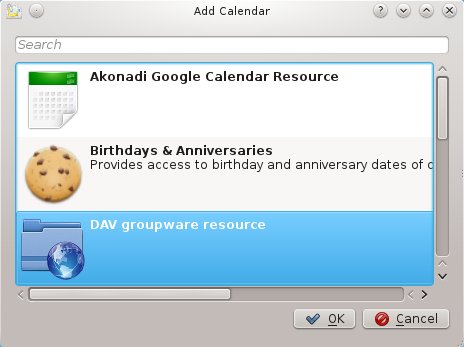
    Contacts were the easy part - now for the calendars. As with contacts, I start by switching over to the Calendar (not Kalendar, that would be silly) section of Kontact and delete the local calendar defaulted for me. Then I right-click in that now-empty pane and select "Add Calendar", which greets me with a similar Add window as before.


    But this time, instead of selecting the Google Calendar Resource, we want the choice labelled "DAV groupware resource." This is a standards-based interface, and actually works better with Google Calendars than the other, more intuitive choice. But the setup isn't intuitive at all: the next dialog that pops up is a Logon Credentials window, which I have to Cancel to proceed. Yes.

    Next is the configuration window for this new DAV groupware resource, which I'll show after I populate it with some stuff. The initial tasks are to choose a name (I chose "Google" because I'm very creative), and to click the Add button under Server configuration. Each Google calendar I want to see in Kontact is a line under the Server configuration section. I'll start with my personal one:


    The Google instructions for DAV integration say to use the URL "https://www.google.com/calendar/dav/XXXX/events/", where XXXX is replaced by:
    • your gmail address if this is your primary personal calendar, or
    • a special identifier on the calendar settings page if this is a shared calendar
    Once I put in this URL, and my gmail account and password again, I clicked Fetch and the stuff in the bottom list populated. I repeated this process for the shared McHouse calendar, and that resulted in this nice fully-populated DAV configuration window:


    Click OK, and all my appointments download into the Calendar. It's a pretty light week, thankfully.


    There's still a ton of look-and-feel setup to do, but the important part is that it all works and it's all integrated. The little customizations and tweaks can be done as I use the software.

    Just three left!

  • PasswordSafe for secure password management
  • Moneydance for personal finance DONE!
  • ThinkOrSwim for option trading DONE!
  • Minecraft DONE!
  • Dropbox for cloud storage DONE!
  • Kontact for e-mail, contacts, and calendar DONE!
  • Choqok for micro-blogging (following and posting to Twitter) DONE!
  • NixNote for notes/personal organization
  • Okteta hex editor DONE!
  • Bacula for automated backups
  • 01 November 2011

    Arch User Repository

    See Time For a Change for the first in this series, or check out the index for all the posts on Arch Linux. Today I'll get the Arch User Repository working, which will let me configure my email, calendar, and contact integration.

    Setting Up the Arch Build System
    I briefly mentioned the Arch User Repository (AUR) during the Moneydance installation, and during that rollercoaster ride I actually used it in a failed attempt to get Moneydance working. Since it didn't pan out, I didn't include that as part of the post. But in order for Kontact to integrate with Google Calendar and Contacts, I will definitely need the AUR.

    The Arch Way stipulates that everything should be kept as simple as possible - not for the user/administrator, but from a software dependency perspective - so only truly globally-useful software should make its way into the supported package repositories. That means that a great deal of very valuable software either doesn't have a wide enough target audience, or is too encumbered by pervasive library dependencies, or simply doesn't have the bullet-proof cross-platform support necessary to let it graduate into the big leagues. There is still a wide market for these packages, however, so the Arch team developed the Arch User Repository to hold the grab bag of all these fringe applications. This may sound a little Wild West - and it is - but consider the alternative that Windows users deal with every day. If you want something for Windows, you go find it online, download it, install it, and hope it works. It is a slightly different process for every application on your computer, which means that all the version management, update management, dependency checking, and distribution is multiplied by the number of applications on your hard drive. What a waste! By providing a central repository for stuff like this, Arch gives us a single place to look to see if anyone else has configured a given application and made it available.

    To use the AUR, I needed to install and configure the Arch Build System. If you're trying to do this yourself, pay close attention to whether I'm giving root (#) or user ($) commands from here on. There are very good reasons not to use root unless absolutely necessary when working with the AUR.

    # pacman -S abs
    # abs
    # abs

    I ran abs twice because the first time after installation it sets up its own internal indexes but fails to download any updates. The second and every subsequent time it updates everything from the Arch Mothership. This is a lengthy process, so I went and made some coffee while I waited.

    Using the AUR
    Now that the ABS is set up, I can use it to get, build, and install the two Google-integration packages I will need in the next post. First, we have libgcal: this is a Google Calendar library that other applications can use to access Calendars. Second, we have akonadi-googledata, which gives Akonadi the ability to communicate with Google Information Servers. Akonadi is the KDE-wide framework that gives access to personal information like email, calendars, and contacts to applications written to use it. Tying everything together, akonadi-googledata uses libgcal to interact with Google Calendars. If this seems complicated and error-prone, then it's because you are a very perceptive reader. Most of my swearing and hair-pulling with KDE is caused by Akonadi.

    There is an easier way to install packages from the AUR than manually using ABS, as I do below. This easier method, called yaourt (which stands for Yet AnOther User Repository Tool), itself must be set up via the ABS. Since the two packages I need for this step are so simple to do manually, there really isn't any reason to install yaourt to get this job done.

    To get started, I made an abs subdirectory under my home directory, and downloaded libgcal and akonadi-googledata from the AUR into that subdirectory, extracting them there as well. The URLs below aren't magic; I just went to the AUR and searched for the packages, and then ran their URLs through bit.ly so they would fit on one line.

    $ mkdir ~/abs ; cd ~/abs 
    $ wget http://bit.ly/sJXtXi # libgcal
    $ wget http://bit.ly/tZyrQz # akonadi-googledata
    $ tar xf libgcal.tar.gz
    $ tar xf akonadi-googledata.tar.gz

    At this point, both packages are ready for building in ABS. Since akonadi-googledata depends on libgcal, I did libgcal first and akonadi-googledata second.

    $ cd libgcal ; makepkg -si libgcal
    $ cd ../akonadi-googledata ; makepkg -si akonadi-googledata

    Makepkg is part of the ABS, and will read all the meta-files in the AUR tarball, downloading, compiling, and installing as necessary. With the -i flag, it creates a package that can be installed with pacman. With the -s flag, it goes ahead and automatically installs with pacman, asking for my password so it can sudo that operation. You should only use the -s flag if you know and trust the package. AUR packages are scripts and software, provided by other users, that you are using super-user privileges to install onto your system. In the unlikely event that there is malware in a package, you are giving it carte blanche on your computer. So be careful!

    The commands above both output a tremendous amount of stuff, most of it very scary to non-developers. But they do their jobs, limiting their interaction with me to "what's your password" and "please confirm you want to do this", and a quick verify afterward yields good results:

    # pacman -Q libgcal akonadi-googledata
    libgcal 0.9.6-1
    akonadi-googledata 1.2.0-1

    Next: Configuring Kontact
    Or check out the Index.

    26 October 2011

    Applications: Minecraft

    See Time For a Change for the first in this series, or check out the index for all the posts dealing with Arch Linux. Since I only have a limited time to work on the Arch test machine this evening, I'll tackle something that should be pretty simple now that I have Moneydance working.


    Note that this post is not going to be a description or review of Minecraft. If you want to learn about Minecraft, just Google it and you'll have all the information you want, and a great deal more besides. This is about getting Minecraft working in a 64-bit Arch Virtual Machine.

    Still Here?

    Minecraft is written in Java, and thus is designed to work on just about any major operating system. But when I tried to install it and use it on my Arch 64-bit VM, it crashed on me. I suspected that it was the same problem as Moneydance: OpenJDK vs OracleJRE, but forum reports said would work just fine with OpenJDK. The problem turned out to be that I had not enabled 3D acceleration in my VirtualBox test machine. After a quick shutdown and reconfigure, I booted back up and launched Minecraft again:

    $ java -jar minecraft.jar

    It sent nearly continuous errors to the console, but managed to login and start the game. Not wanting to see these constant error messages, and knowing that they would slow down execution of the game, I slightly modified my command and tried again:

    $ java -jar minecraft.jar &> /dev/null

    The additional characters in this command simply redirect all output to the endless vacuum of space.

    Minecraft came up, and let me login, although strangely I had to click the Login button a couple of times before it succeeded. But as soon as I entered a world, the mouse control was awful. No matter how careful I was, I found myself staring at either the ground or the sky, spinning in place. After some more Googling, I discovered that this is a known issue when using Minecraft in a VirtualBox guest machine, and the solution is as simple as to disable mouse integration when using Minecraft. I tried that, and voila! Resource-gathering goodness.

    In the home stretch now, I used the same menu-editing trick I used for ThinkOrSwim, stealing an icon from my host machine (don't remember where I found it in the first place), and sticking Minecraft under the Games submenu.

    Six down, four to go!

  • PasswordSafe for secure password management
  • Moneydance for personal finance DONE!
  • ThinkOrSwim for option trading DONE!
  • Minecraft DONE!
  • Dropbox for cloud storage DONE!
  • Kontact for e-mail, contacts, and calendar
  • Choqok for micro-blogging (following and posting to Twitter) DONE!
  • NixNote for notes/personal organization
  • Okteta hex editor DONE!
  • Bacula for automated backups
  • 19 October 2011

    Applications: Dropbox

    See Time For a Change for the first in this series, or check out the index for all the posts dealing with Arch Linux. Today I'll get Dropbox installed and configured, so all the files I like to have follow me around will continue to do so.

    If I were using GNOME, installing Dropbox would be really easy: just go to the website, download the installer, run it, and it steps me through. If I were using GNOME within Ubuntu, it would be even easier yet: just select Dropbox in the Software Center and it installs it for me and keeps it up-to-date. But I'm using KDE under Arch, so things are a bit more complicated: Dropbox doesn't directly support KDE, and Arch doesn't directly support Dropbox.

    Getting Dropbox installed and running is still pretty straightforward:

    $ wget http://www.getdropbox.com/download?plat=lnx.x86_64 dropbox-dist.tar.gz
    $ tar xf dropbox-dist.tar.gz
    $ .dropbox-dist/dropboxd &

    The first line downloads the latest version of the 64-bit distribution of Dropbox from their website and saves it as a recognizable archive file (.tar.gz files are the GNU/Linux equivalent of .zip files on Windows). Note: There is a space at the line break: "...lnx.x86_64   dropbox-dist.tar.gz". The next line extracts the contents of the archive, which automatically creates the whole .dropbox-dist/ subdirectory tree under the current directory (in this case, my home directory). And the last line starts the dropbox daemon in the background so it can ask me for my credentials and start downloading my files.

    I get an error message about the Nautilus file manager (default in GNOME) not being installed, because Dropbox is designed to integrate with it like it does with File Explorer in Windows. It's not a big deal, although it is kind of nice to have the little green checkboxes and blue arrow badges on my Dropbox files so I know if there are any synchronizations outstanding. But I can also get that information from the Dropbox taskbar icon, which is fully functional in KDE. It also would be nice to get Dropbox to automatically keep itself up-to-date, but that's true of just about all of these hand-installed applications. Auto-updating is something I'll work on after I move in for good.

    But having Dropbox automatically start when I log into KDE is important, because a file synchronization utility that isn't running also isn't synchronizing. To do this, I had to create a KDE "Desktop" file in the right place. I created a Desktop file when I installed ThinkOrSwim, too, by using the KDE Menu Editor. In that case, it stored the Desktop file in my Menu subdirectory so that the KDE Menu would load the information when I clicked the KDE Kicker button (similar to the "Start" Menu in Windows). But this time I decided to create the file by hand, because I wanted to understand how things worked.

    In order to create a valid Desktop file, I first needed to understand the format. Google is my friend, and so I found this Desktop Entry Specification that answered my questions. That allowed me to create the file ~/.kde4/share/autostart/dropboxd.desktop with some degree of confidence:

    [Desktop Entry]
    Type=Application
    Version=1.0
    Name=Dropbox
    Exec=/home/mark/.dropbox-dist/dropboxd
    Path=/home/mark/.dropbox-dist/

    This is pretty self-explanatory, I think, except for "Version", which refers to the version of the Desktop Entry Spec, not Dropbox itself. After a reboot to verify that Dropbox was auto-starting, I was all set.

    Halfway there!


  • PasswordSafe for secure password management
  • Moneydance for personal finance DONE!
  • ThinkOrSwim for option trading DONE!
  • Minecraft - thought this would be easy, but it crashed on my first attempt
  • Dropbox for cloud storage DONE!
  • Kontact for e-mail, contacts, and calendar
  • Choqok for micro-blogging (following and posting to Twitter) DONE!
  • NixNote for notes/personal organization
  • Okteta hex editor DONE!
  • Bacula for automated backups


  • Next: Minecraft
    Or check out the Index

    14 October 2011

    Applications: Moneydance

    See Time For a Change for the first in this series, or view the index to see all the posts dealing with Arch Linux. This time I get Moneydance installed and functional, despite Oracle's best attempts to thwart me. This one should not have been this hard.

    Personal Finance - Failed First Try
    Microsoft Money was the best personal finance manager I've ever used, but Microsoft withdrew support for it a couple of years ago. And neither it nor Quicken run on Linux, anyway, so I was forced to find a new program. After trying a few, the best one I could find was Moneydance. It has all the quirks of an open-source program, but it costs money. Feh. The quality bar seems to be pretty low for personal finance management programs.

    Installing Moneydance starts with downloading a script from their website. Running it, I get:

    Could not display the GUI. This application needs access to an X Server.

    Two Steps Forward
    Insta-fail! I have an X Server, you morons. I did a little searching around on their website and didn't find much. But I did notice that the file downloaded from the link above included an embedded java runtime. I decided I might try one without the embedded java, and that turned out to simply be Moneydance itself, without an installer at all. That was fine with me... I did the same launcher-creation magic that I did with ThinkOrSwim yesterday, and Moneydance was ready to go.

    A personal finance program is useless without finances, though, and I certainly don't want to throw away all my records from my old machine and start fresh. How to transfer files from the host to the guest? Well, VirtualBox has a great way to do that. I can specify a folder on the host machine to share with the guest. In a Linux guest like Arch, this shows up as a device that can be mounted, allowing me to simply copy files around. I right-clicked the wee folder icon in the bottom-right of the guest's VirtualBox window, and added a folder on the host (real) machine I want the guest (virtual) machine to see. I chose my home directory, giving it full read-write access in case I need to copy files back sometime.
    The wee folder icon
    Then I mounted the directory in the guest like this:

    $ sudo mount -t vboxsf hildehome /mnt/hildehome/

    The first "hildehome" is the name I gave my shared folder in VirtualBox ("hilde" is the name of my host machine), and the second, "/mnt/hildehome/" is the directory in the guest at which I want it mounted. Sure enough, after executing that command, I could see the contents of my host's home directory. So I simply copied the "money.md" file containing the last few years of my financial activity from my host's Documents folder to the same folder on the Arch guest machine, and then launched Moneydance. It asked me what I wanted to do, and I chose "Open an Existing File", and HPFM! it looked just like it did on my host machine.

    One Step Back
    I have an extension installed on the original machine that downloads stock prices from the internet and updates them in Moneydance so I know the current value of my investments. For some reason, Moneydance refused to acknowledge my click on the "Yes, please install" button. More searching on the website, and I discovered that the problem is that for Java I'm using the OpenJDK instead of the Sun JRE. Moneydance Support's advice is to use the Oracle JRE (used to be the Sun JRE until Oracle pulled a Borg on them), but that no longer works now that (F-ing, Evil) Oracle has removed its license to let Linux distros redistribute the Oracle JRE.

    I did some looking on the Arch Wiki, and I can still install the Oracle JRE if I do it via the Arch User Repository (AUR). But apparently because I installed the OpenJDK already, that keeps OracleJRE from getting installed; and I can't remove the OpenJDK to replace it because KDE itself requires it. Great.

    A Different Approach
    What if I install it manually, by downloading the JRE directly from Oracle, the way a Windows user would? After accepting the hell-spawned license agreement and downloading the tarball, I extracted it into a working directory. Inside was a complete Java installation that required no secondary installation, so instead of doing anything fancy, I copied it to a system directory and set up an easy-to-use link.

    $ sudo mv ~/abs/jre1.7.0 /opt/
    $ sudo ln -s /opt/jre1.7.0 /opt/oraclejre

    Now, in theory, I should be able to point any Java-using app to that location instead of the system-default OpenJDK, which is installed at /usr/lib/jvm/java-6-openjdk. So let's look at the script that runs Moneydance. I've trimmed out some script glue to show what's really going on, and I've numbered the lines for reference (the line numbers are not part of the script):

    1. MDHOME=`dirname "$0"`
    2. JAVA_EXE=java
    3. if [ -x ${MDHOME}/jre/bin/java ] ; then
    4.    JAVA_EXE=${MDHOME}/jre/bin/java
    5. fi
    6. exec "${JAVA_EXE}" -mx512m -cp "${MDCLASSES}" Moneydance "$@"
    Line 1 finds the directory in which the script is running and assigns it to the variable MDHOME.  Line 2 sets a default path-based location for Java, essentially defaulting to what a user would get if he typed "java" at the command-line. On my machine, that's the OpenJDK version, which we already know doesn't work. Lines 3-5 test to see if there is an executable named "java" in the .../jre/bin directory under where the script is running. If so, it will use this one instead. This allows overriding the default system Java. Finally line 6 runs Java in the location chosen, and passes the necessary parameters to get Moneydance running.

    The best way for me to trick Moneydance into using my newly installed OracleJRE, without changing this script, is to simply create a link in my Moneydance directory over to where the OracleJRE is. Moneydance's launch script will detect this, and use the OracleJRE. I'll run a few commands below to assure myself I'm doing what I think I'm doing, but the only really essential one is the "ln", which I have helpfully bolded.

    $ java -version
    java version "1.6.0_22"
    OpenJDK Runtime Environment (IcedTea6 1.10.3) (ArchLinux-6.b22_1.10.3-1-x86_64)
    OpenJDK 64-Bit Server VM (build 19.0-b09, mixed mode)
    $ /opt/oraclejre/bin/java -version
    java version "1.7.0"
    Java(TM) SE Runtime Environment (build 1.7.0-b147)
    Java HotSpot(TM) 64-Bit Server VM (build 21.0-b17, mixed mode)
    $ ln -s /opt/oraclejre ~/moneydance/jre
    $ ~/moneydance/jre/bin/java -version
    java version "1.7.0"
    Java(TM) SE Runtime Environment (build 1.7.0-b147)
    Java HotSpot(TM) 64-Bit Server VM (build 21.0-b17, mixed mode)

    Looks good! When I next ran Moneydance, not only did it come right up as before, but I was able to install and configure the Stock Quote Updater plugin. And my portfolio went up today! Win-win!

    Four down, six to go!

  • PasswordSafe for secure password management
  • Moneydance for personal finance DONE!
  • ThinkOrSwim for option trading DONE!
  • Minecraft - thought this would be easy, but it crashed on my first attempt
  • Dropbox for cloud storage
  • Kontact for e-mail, contacts, and calendar
  • Choqok for micro-blogging (following and posting to Twitter) DONE!
  • NixNote for notes/personal organization
  • Okteta hex editor DONE!
  • Bacula for automated backups


  • Next: Dropbox
    Or check out the Index